🚗🏍️ Welcome to Motoshare!

Turning Idle Vehicles into Shared Rides & New Earnings.
Why let your bike or car sit idle when it can earn for you and move someone else forward?

From Idle to Income. From Parked to Purpose.
Earn by Sharing, Ride by Renting.
Where Owners Earn, Riders Move.
Owners Earn. Riders Move. Motoshare Connects.

With Motoshare, every parked vehicle finds a purpose. Partners earn. Renters ride. Everyone wins.

Start Your Journey with Motoshare

Hot to Generate and Add an ssh Key for Secure Authentication

Generating and adding an SSH key for secure authentication involves a few straightforward steps. Here’s a guide to creating an SSH key, adding it to your local SSH agent, and configuring it for authentication with remote servers or services like GitHub, GitLab, etc.

Generate the SSH Key

When prompted to “Enter a file in which to save the key,” provide a custom path within the htdocs folder.

step1: Open Git Bash and run the following:
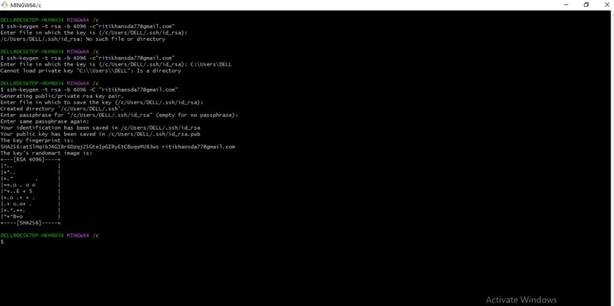
This command creates a new SSH key, using the provided email as a label.

This saves the private key as project_name_ssh_key and the public key as project_name_ssh_key.pub in the htdocs folder. When prompted to “Enter a passphrase,” type a secure passphrase or press Enter to skip.

Step 2: Add the SSH Key to GitHub or a Server
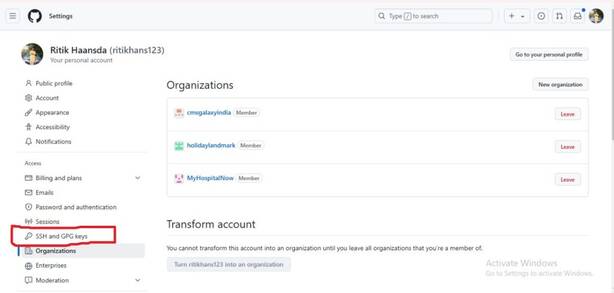
  • Log in to GitHub and navigate to Settings > SSH and GPG keys.
  • New SSH key, add a Title, paste the public key, and click Add SSH key.

For a Remote Server:

Copy the public key to the remote server’s ~/.ssh/authorized_keys file.

ssh username@server_ip

Append the key:

cat ./project_name_ssh_key.pub | ssh username@server_ip "mkdir -p ~/.ssh && cat >> ~/.ssh/authorized_keys"

Test the SSH Key

Test the connection to GitHub:

ssh -T git@github.com

Test the connection to a remote server:

ssh -i ./project_name_ssh_key username@server_ip

Test the SSH Key

Test the connection to GitHub:

ssh -T git@github.com

Test the connection to a remote server:

ssh -i ./project_name_ssh_key username@server_ip

Configure Git to Use the SSH Key (Optional)

If you’re using Git in the htdocs folder and want it to use the generated SSH key:

Add the key to the SSH agent:

eval "$(ssh-agent -s)"
ssh-add ./project_name_ssh_key

Configure Git to use this SSH key:

git config core.ssh Command “ssh -i ./project_name_ssh_key

Related Posts

Comprehensive Guide to Certified Site Reliability Engineer Professional Success

Introduction Modern software delivery has shifted from simple code deployment to managing complex, distributed systems at scale. The Certified Site Reliability Engineer program is designed for professionals…

Certified DevSecOps Professional: The Definitive Career Guide

The engineering landscape has shifted from “building at speed” to “building with integrity.” In my time navigating the evolution of software delivery, I’ve seen that the most…

Certified DevSecOps Manager: A Professional Career Guide

Managing a modern software pipeline is no longer just about keeping the lights on; it’s about building a fortress while the ship is moving. This guide provides…

DevSecOps Engineer Certification Roadmap

Software security is no longer handled as a separate task at the end of a project. Instead, security is integrated into every step of development and deployment….

Mastering the Certified DevSecOps Architecture: A Simple Professional Guide

Software development used to be a lot simpler. We would build something, test it, and then hand it over to a security team to check. But today,…

The Complete Observability Engineering (MOE) Certification Handbook

The landscape of modern software has moved beyond simple server management. We are now in an era of complex, distributed systems where “it works on my machine”…

0 0 votes
Article Rating
Subscribe
Notify of
guest
0 Comments
Oldest
Newest Most Voted
Inline Feedbacks
View all comments
0
Would love your thoughts, please comment.x
()
x